Magi-2 AI Image Generator and Photo Editor
Create a product shot, portrait or poster with Magi-2. Upload a photo to change its background or lighting, then compare a few versions before downloading the one you like best.

Restoring your setup…
Where should the eye land in your Magi-2 image?
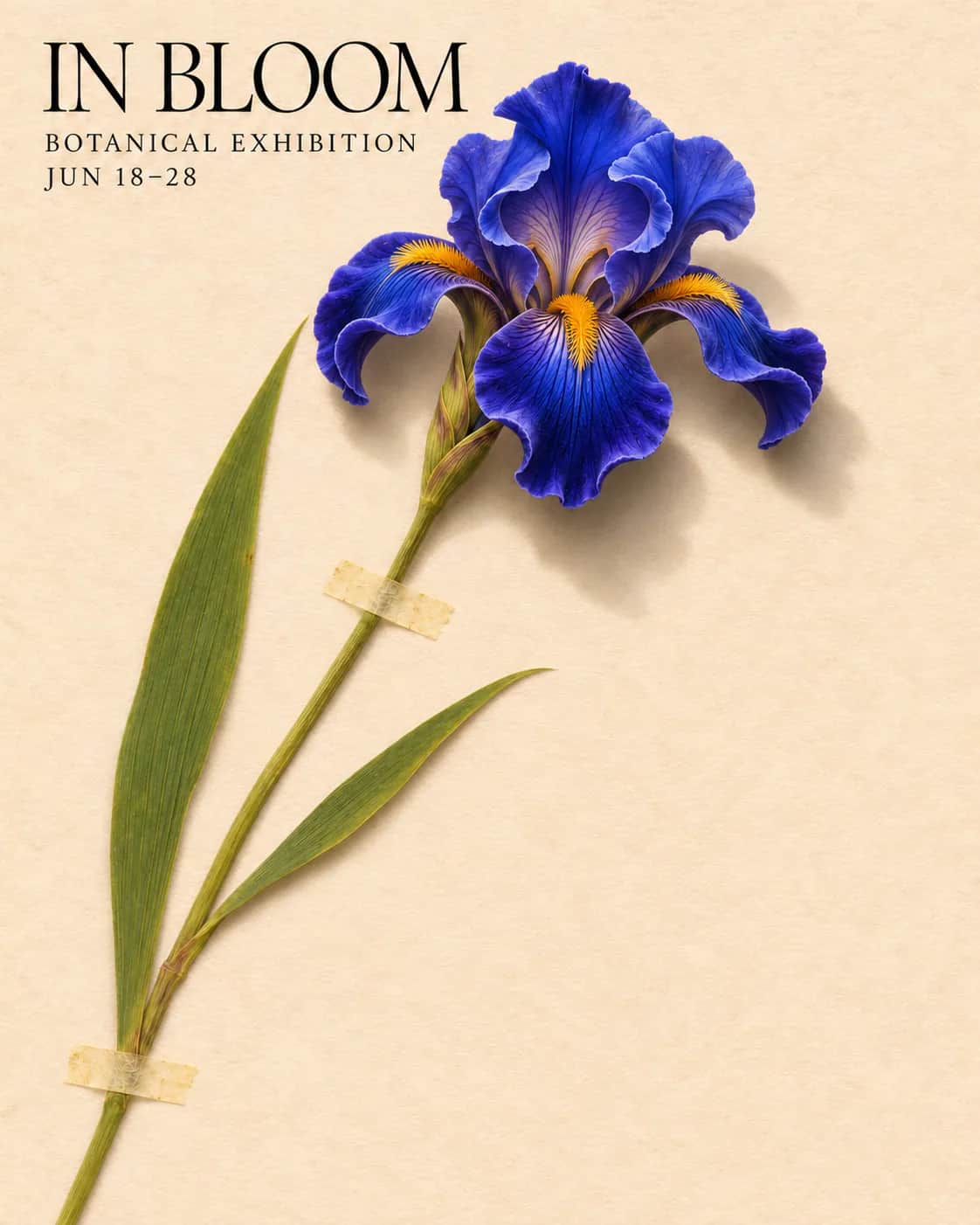
The focal point is the blueberry can. In this Magi-2 poster, its dark outline frames the white label. The pale lettering behind it gives the fruit room to float.
The original is a 3:4 poster. Try a square crop for a shop listing. Keep the rim and base of the can in view, even if a few berries fall outside the frame.


Where the light falls in Magi-2 portraits and still lifes
Look at how the portrait uses its background, then how the dessert sits on the page. Bring one choice into Magi-2 and see what it does for your own subject.
People with a place in the picture
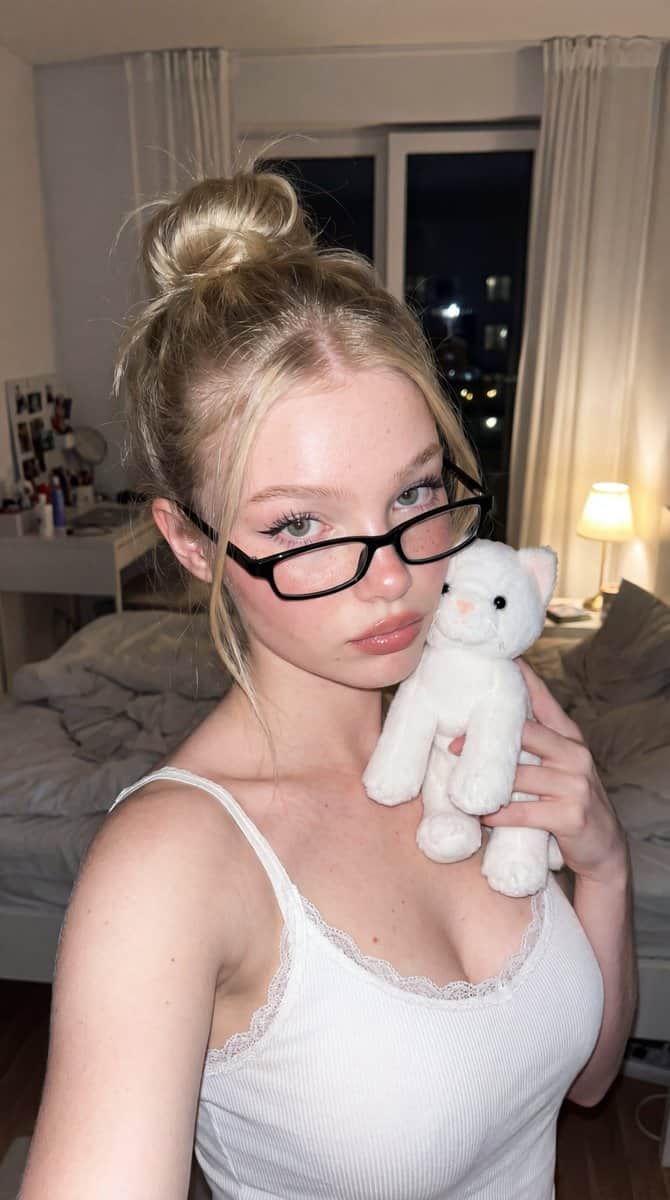
A casual selfie or a quiet portrait can carry more personality than a studio backdrop. Describe the distance, the light and what the person is doing; let the setting support the moment.
The little details that count
Look at a Magi-2 portrait at 25% zoom first. What catches your eye, the glasses or the toy? At 100%, check the reflection in the lenses.
A Magi-2 dessert board, from gift box to filling
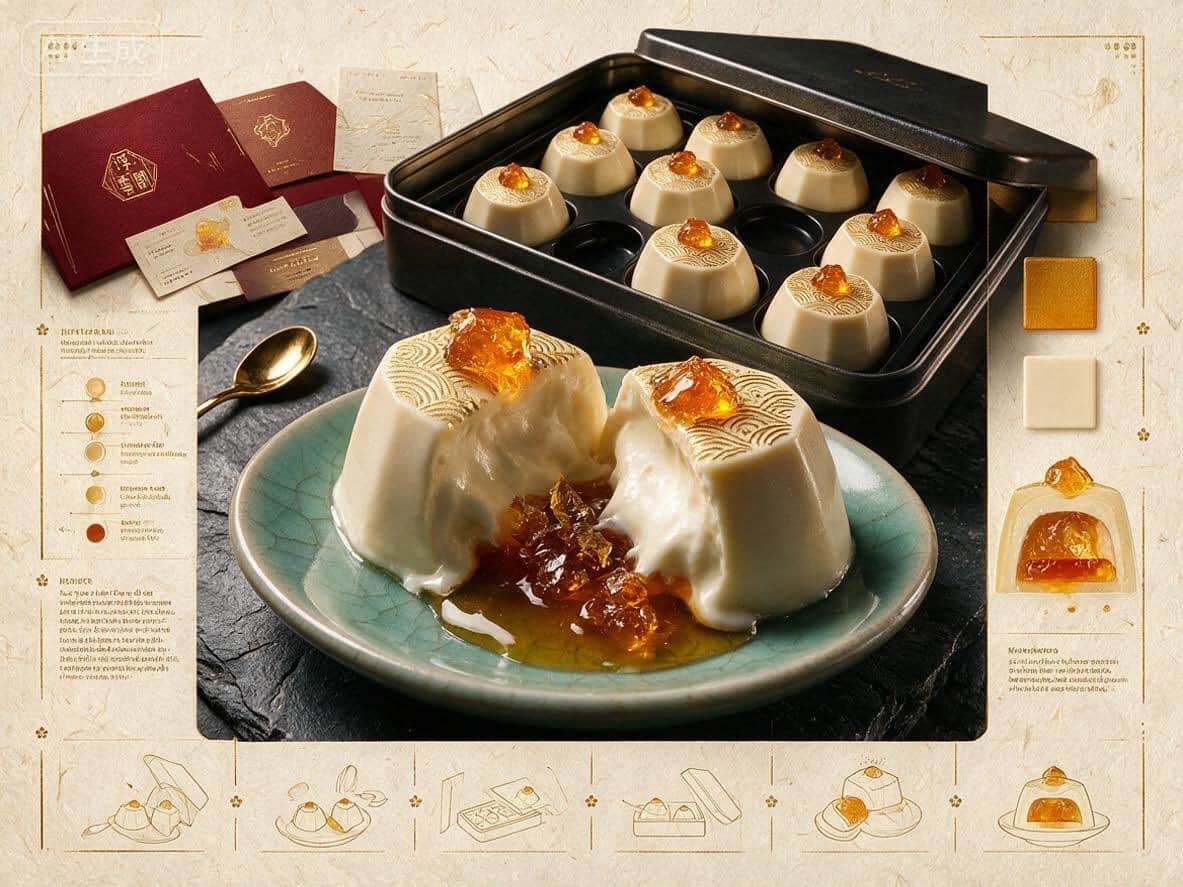
The dessert board shows the filling, the gift box and the materials together. In Magi-2, give the cut dessert the largest panel and keep the smaller views for the box and its finish.
The little details that count
Check the packaging shape, material, small lettering and consistency between views.
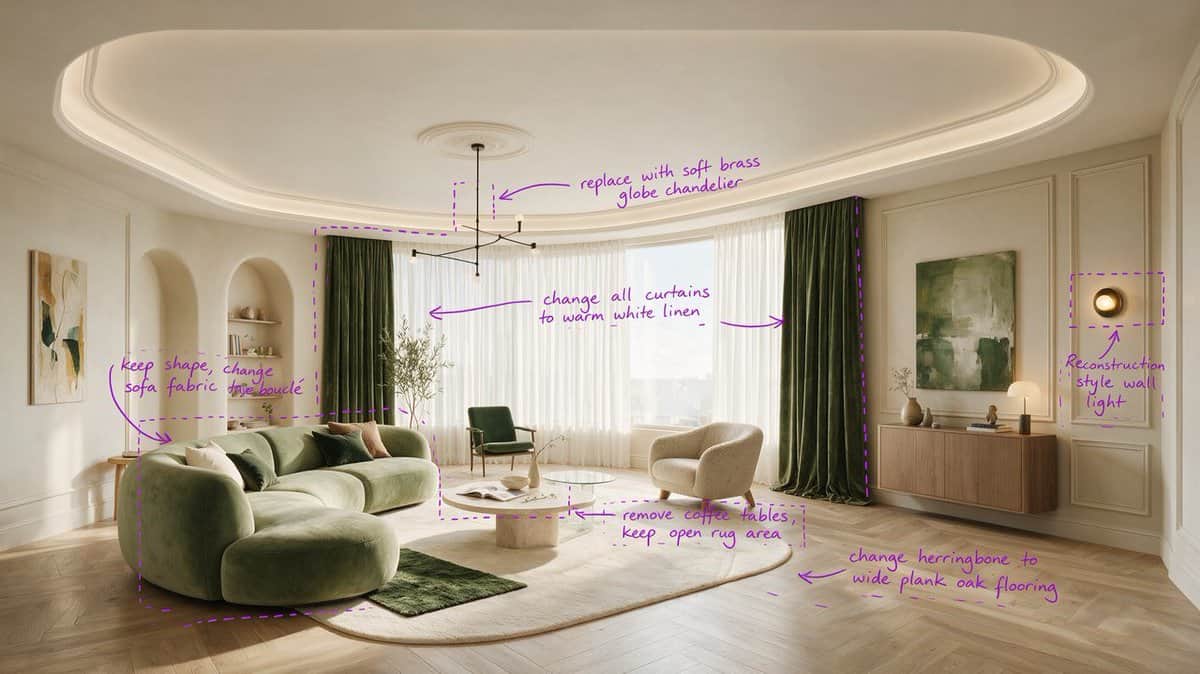
Edits with a clear intention
Use Magi-2 to change one thing in a room, such as the chair fabric or the lamp. In the same brief, name the things that should stay put, from the camera angle to the gap between the sofa and the wall.
The little details that count
Review each requested change against the reference; look for unintended changes nearby.
Four briefs for your Magi-2 image series
A café menu has to read from across the counter. A portrait in a feed has a moment to catch the eye. Which brief fits your picture?
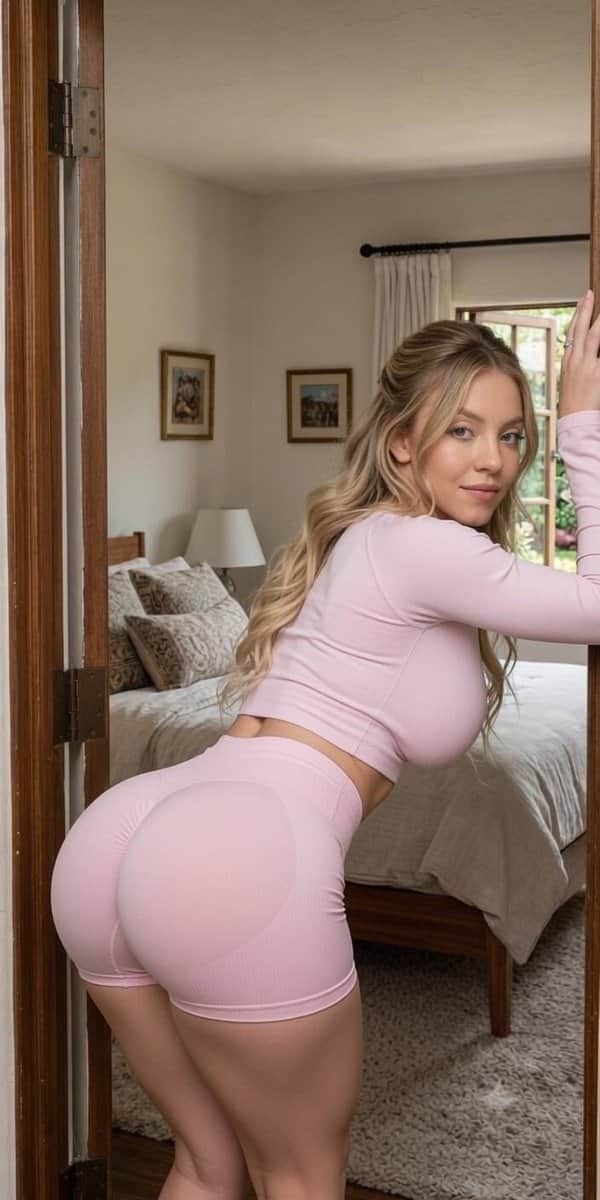
A post with some personality
- A brief to try in Magi-2
- Show a person in a recognizable everyday setting. Choose one expression and leave the background readable.
- What you could make
- A Magi-2 portrait with a little space beside the face for a caption.

Build a small set for a Magi-2 product shot
- A brief to try in Magi-2
- Build a scene around one object. Specify its material, scale and light before choosing the supporting props.
- What you could make
- A product composition you can adapt for a listing or campaign.
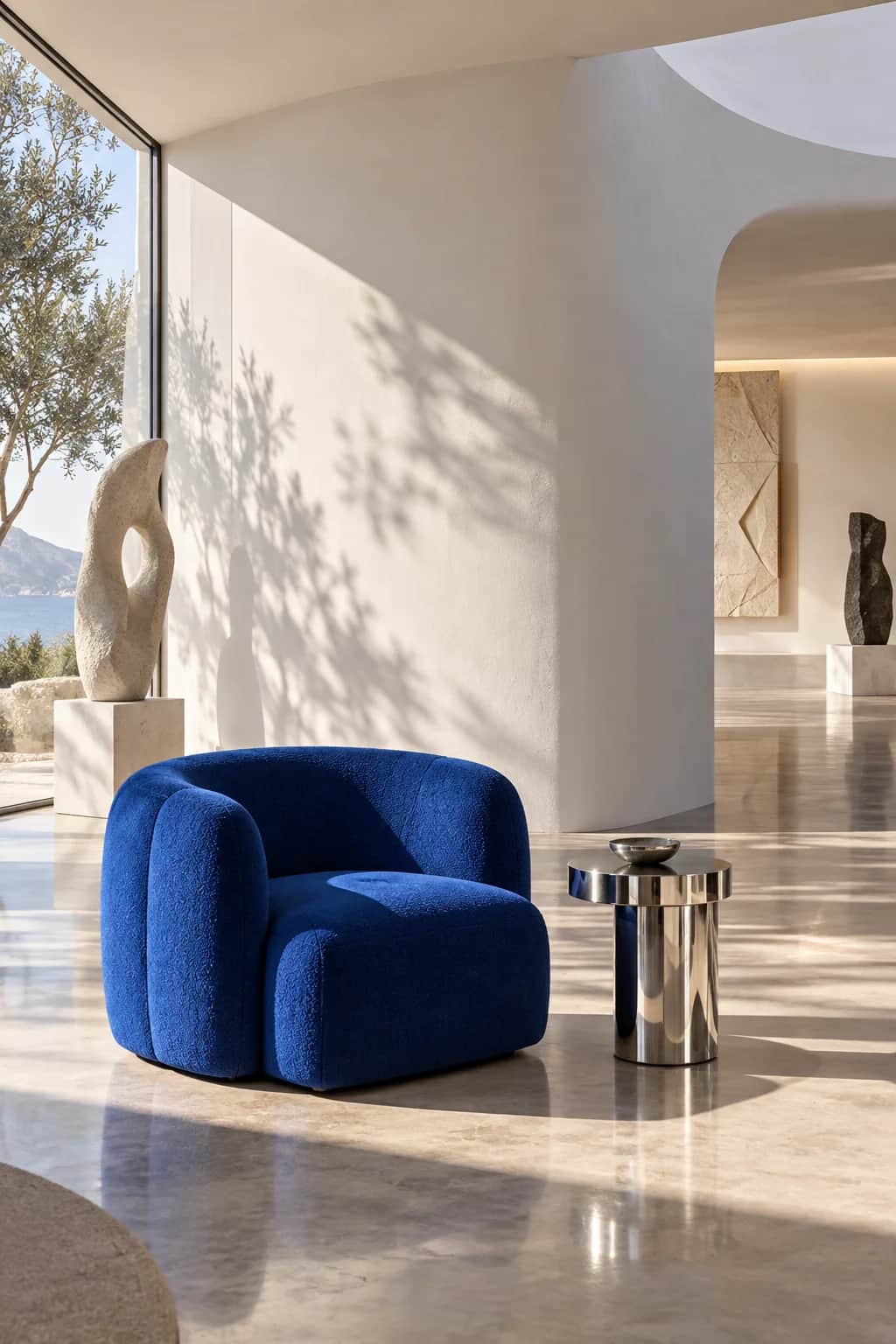
A room, with your changes
- A brief to try in Magi-2
- Keep the room layout and viewpoint. Change the curtains, lamp or sofa fabric one by one, naming the details that should stay.
- What you could make
- An interior concept you can compare with the original and refine.
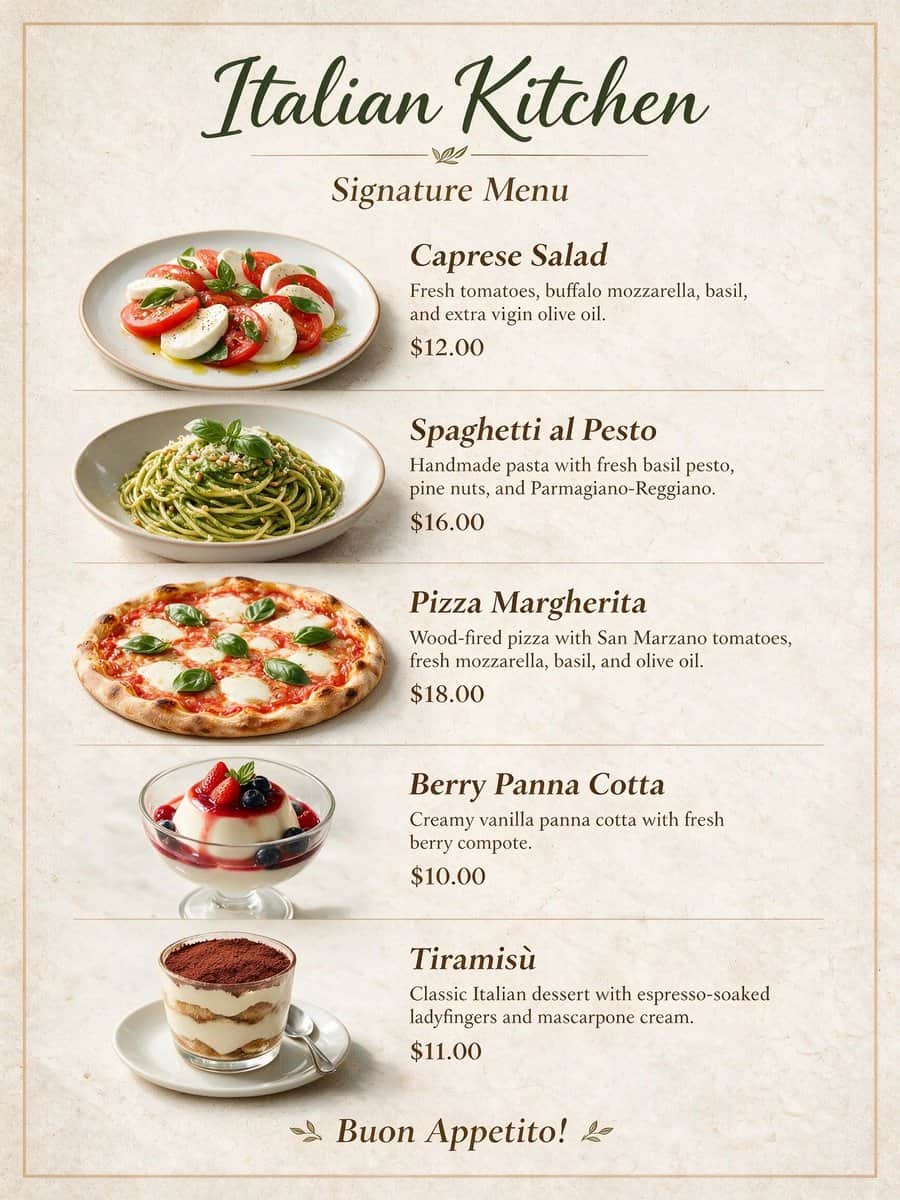
Lay out a café menu in Magi-2
- A brief to try in Magi-2
- Make a café menu with 5 dishes, one per row. Put the plate on the left and its name, description and price on the right.
- What you could make
- A menu you can proofread row by row. Start with the pizza and follow its price across the page.
Frame your subject in Magi-2
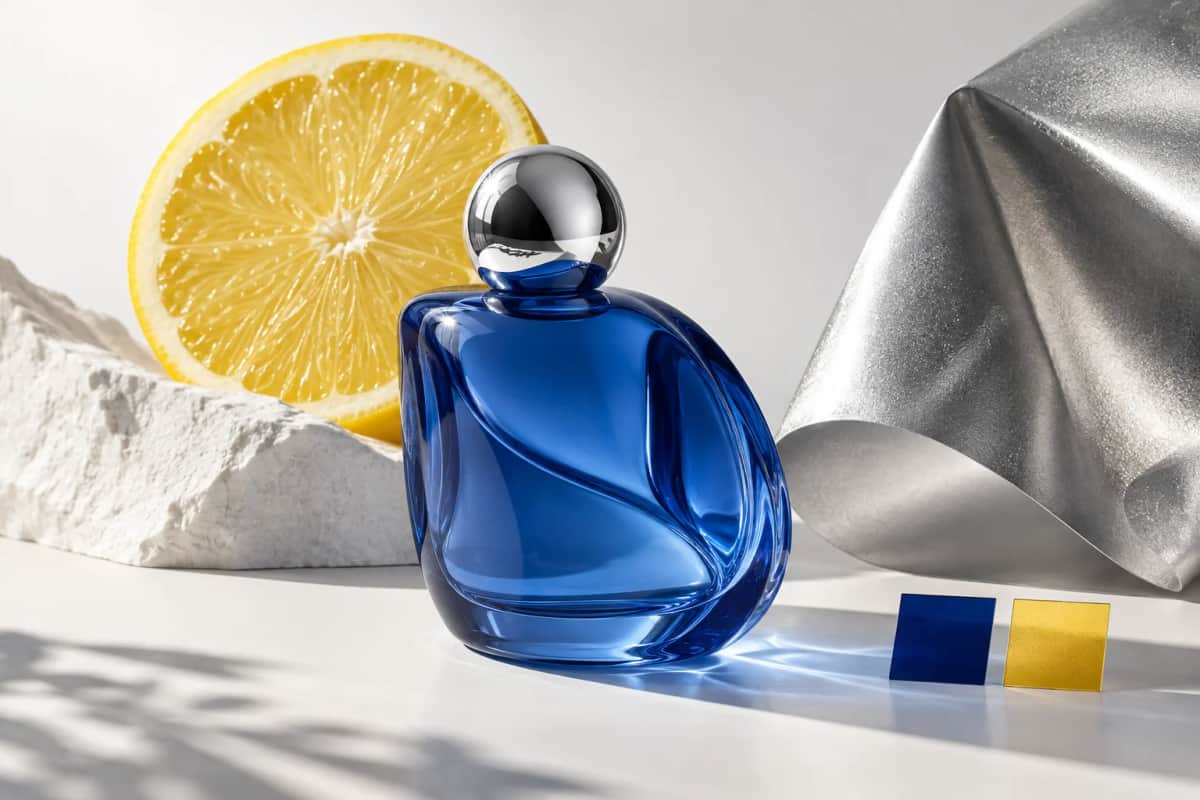
In a Magi-2 product shot, the label should still read when the picture is small. If the silver fabric catches your eye first, try softer light on the folds.
- 01
Choose your starting material in Magi-2
For a new portrait, describe where the person is standing and where the light falls. To restyle a particular photograph, open image editing and upload it so you can point out the details to keep.
- 02
Describe the picture
Tell Magi-2 what should catch the eye. For a red coat on a crowded train, specify where the passenger stands and which window lights the fabric. For an edit, add what should stay as it is.
- 03
Choose your look, then check the credits
Open the settings to choose a model and the available image shape and quality. Think about where the image will go, then check the Magi-2 credit estimate before generating.
- 04
Reopen your Magi-2 image
Open the completed Magi-2 task to inspect the full image, copy the prompt or reuse its settings. Download the original you like; if video continuation is available, take that image straight into your next scene.
An editorial collage with portrait, architecture and paper
Compose a Magi-2 image for where it will appear
A shop listing needs a clear silhouette. A poster can give half its space to a shadow. Review your Magi-2 image at its intended size before choosing the version to keep.
- Pick your main subject
- Tell Magi-2 what makes your subject recognizable. A coat with a single red button says more than calling it distinctive.
- Find your framing
- Describe the viewpoint, distance and where the subject belongs in the frame.
- Give it light and texture
- Try one light source in Magi-2. If the knit of a sleeve matters, bring the light in from the side so the stitches cast tiny shadows.
- Show what you want to keep
- Tell Magi-2 which reference fixes the shape and which one sets the color. A bottle photo can do the first job and a painted wall the second.
When a Magi-2 image needs another pass
| What you notice | What to revise in Magi-2 | What to check next |
|---|---|---|
| The scene feels crowded | Reduce competing props and choose one focal point. | Can you understand the picture at thumbnail size? |
| A reference detail has drifted | Use a clear reference and describe the exact detail to retain. | Compare shape, color and proportions with the source. |
| The framing does not fit the layout | In Magi-2, choose the shape of the finished poster and leave space where the headline will go. | Check the full frame before adding typography. |
How would you start this shot in Magi-2?
What have you already settled on? A bottle with a distinctive silhouette is worth keeping in frame. A character you haven’t cast yet gives you room to experiment. Compare the four starting points in Magi-2 below.
| Magi-2 workflow | Start with | Best for |
|---|---|---|
| Text to image | A written visual brief | Exploring a new composition or visual direction |
| Image editing | A brief and image references | Reworking a setting, palette, or arrangement |
| Text to video | A scene and motion description | Creating a short sequence from a new idea |
| Image to video | A still and motion direction | Adding movement to a prepared composition |
Before you make your next image.
How do I keep a favourite detail when restyling a picture in Magi-2?
Bring the original into image editing and say which detail matters. For a coat with red buttons, ask for a darker backdrop and call out the buttons you want to keep. Compare them side by side before picking the final frame.
How should I prepare reference images?
Start with a photo where you can see the detail you want to keep, such as the stitching on a sleeve. Pick a model in Magi-2 to see the accepted formats, file sizes and number of references.
How do I give a Magi-2 image series a consistent look?
Keep the references, palette, framing and key subject details consistent. Change one instruction at a time and compare each result. Reference input guides the result; it does not guarantee identical details.
Can I turn a finished Magi-2 image into a video?
Open a completed image task and choose “Turn into a video” when it is available. The image is carried into the Magi-2 video editor; add the movement and review the model, duration and credits before generating. You can also upload a saved image yourself.
Which Magi-2 image settings suit my project?
Decide where the picture will appear. A shop listing needs a crop that shows the whole product. A portrait poster might need room for a name. Compare models that offer the framing and quality you need, then check the credit estimate.
When does Magi-2 use credits?
When your request is accepted, Magi-2 holds the estimated credits for that creation. If it completes successfully, those credits are used. A confirmed failure or cancellation releases them. If we’re still checking what happened, the credits stay on hold until we know the outcome.
Where can I reopen a Magi-2 creation?
Sign in and open your Magi-2 history. Each task brings its prompt, settings, status and completed files together. Open the details to download the original, copy the prompt or reuse the settings. Completed images also offer video continuation when a compatible option is available.
Turn your Magi-2 image into a moving scene
Once you like the still, choose what breaks the silence. A head turns, or a reflection slips across the glass. Try the next shot in the Magi-2 video studio
What picture have you been thinking about?
Give Magi-2 a subject you know well. Pick a portrait expression, a product detail or a poster color you want someone to remember, then try the first image.