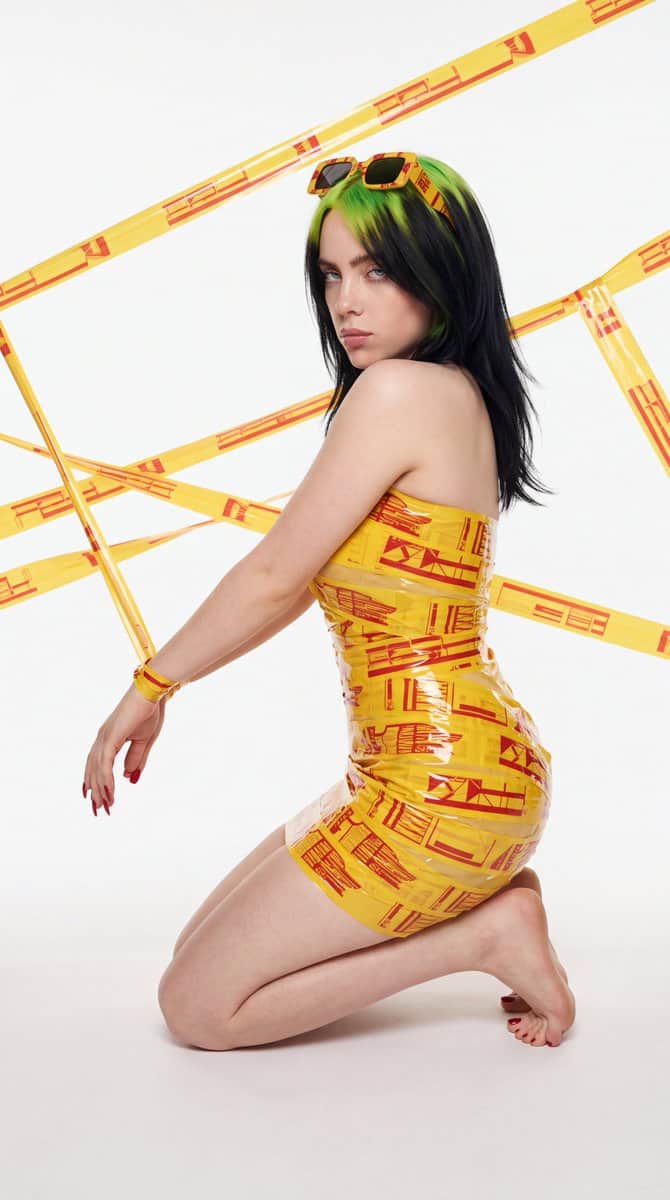
Set the light in Magi-2
A yellow coat almost disappears against an orange wall. Try a strip of white behind one shoulder in Magi-2, then step back and see where the outline comes into focus.
Side light · Colour contrastMake product demos, social videos and animated shorts with Magi-2. Describe your scene or add a reference photo. Need a product image or a character first? Switch to the image studio.
Magi-2 films and shot ideas

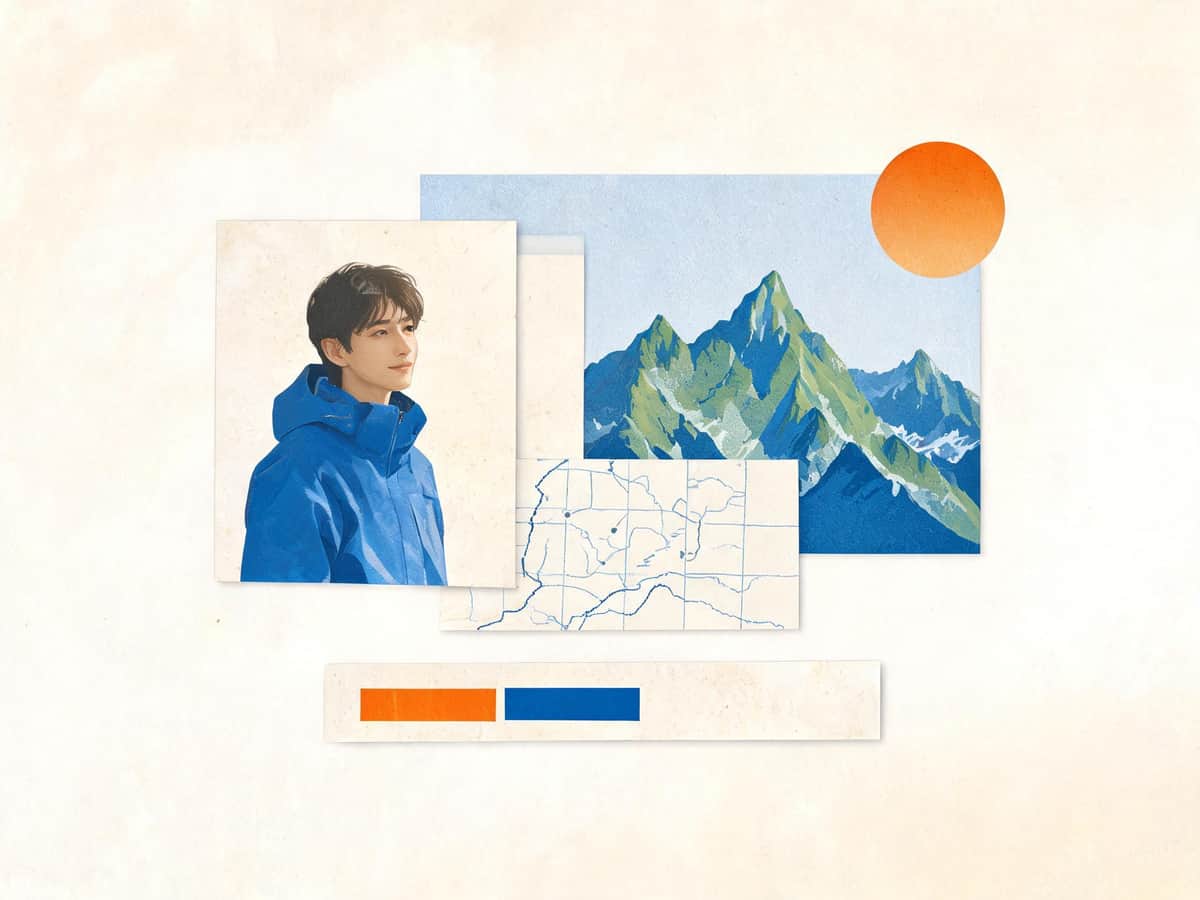
Magi-2 is a film studio for shaping an idea into a sequence of shots. To make a travel poster tell the story of a place, follow the blue jacket to the bend in the trail. When the walker steps aside, give the valley the final shot.
For a story about the traveller, stay close. Their hand tightens on a backpack strap, then relaxes as a friend catches up. The same poster now suggests a completely different ending.
What do you want someone to see first? Use Magi-2 to stage a portrait, show how a product works or turn the last bend of a mountain walk into a travel reel.
A yellow coat almost disappears against an orange wall. Try a strip of white behind one shoulder in Magi-2, then step back and see where the outline comes into focus.
Side light · Colour contrast
Keep the face or product that matters to the shot. Give Magi-2 the reference, then name the part to change, whether it’s the countertop, the wall color or the light falling across a sleeve.
Image references · Written direction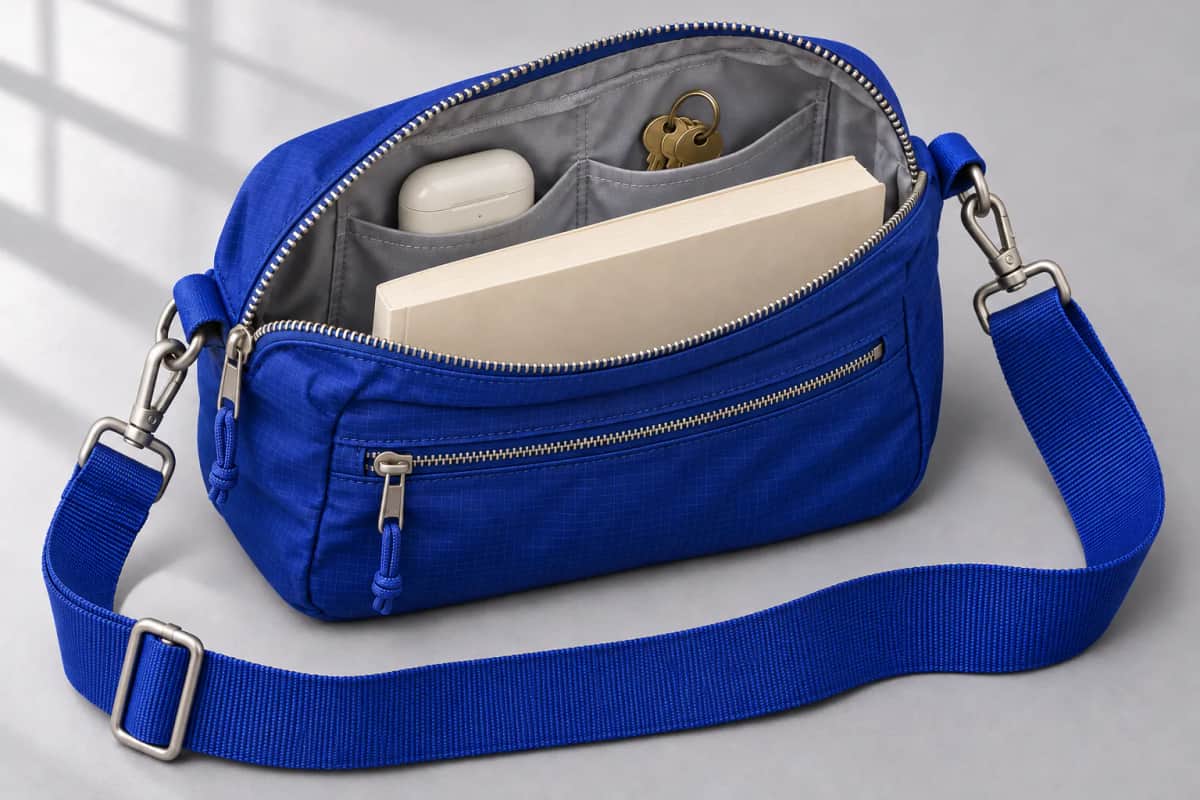
Photograph a bottle beside a breakfast plate or place it alone on a shelf. Try both settings in Magi-2 and compare the silhouette at the size shoppers will actually see.
Product references · Studio conceptsAt opposite ends of a stained-glass hall, two rivals stand perfectly still. For your Magi-2 shot, let one slide a foot forward. The duel begins before either throws a punch.
Wide shot · First moveTwo fighters face each other on the practice floor. In Magi-2, let one lower a shoulder while the other stays still. That small shift tells us who’s about to move.
Starting frame · Motion directionReturn to the prompt and settings behind your work. Track active tasks, download completed results, and reuse a setup when you want to try a different direction.
History · Downloads · Reuse settingsThe juice glass catches the sun. A dancer turns beneath a tunnel light. Each example below comes with a brief you can adapt. Pick one visible detail to carry into your own scene.

A glass of juice can sell the feeling of a summer afternoon. In Magi-2, set it close enough to see the condensation. Leave a patch of bare table if the image is destined for a menu.
A glass of fresh orange juice on a sunlit table, soft shadows, visible condensation, a quiet background and open space beside the glass.
Check the glass shape, liquid level and shadows. Leave typography for the layout stage and review the image at its final crop.
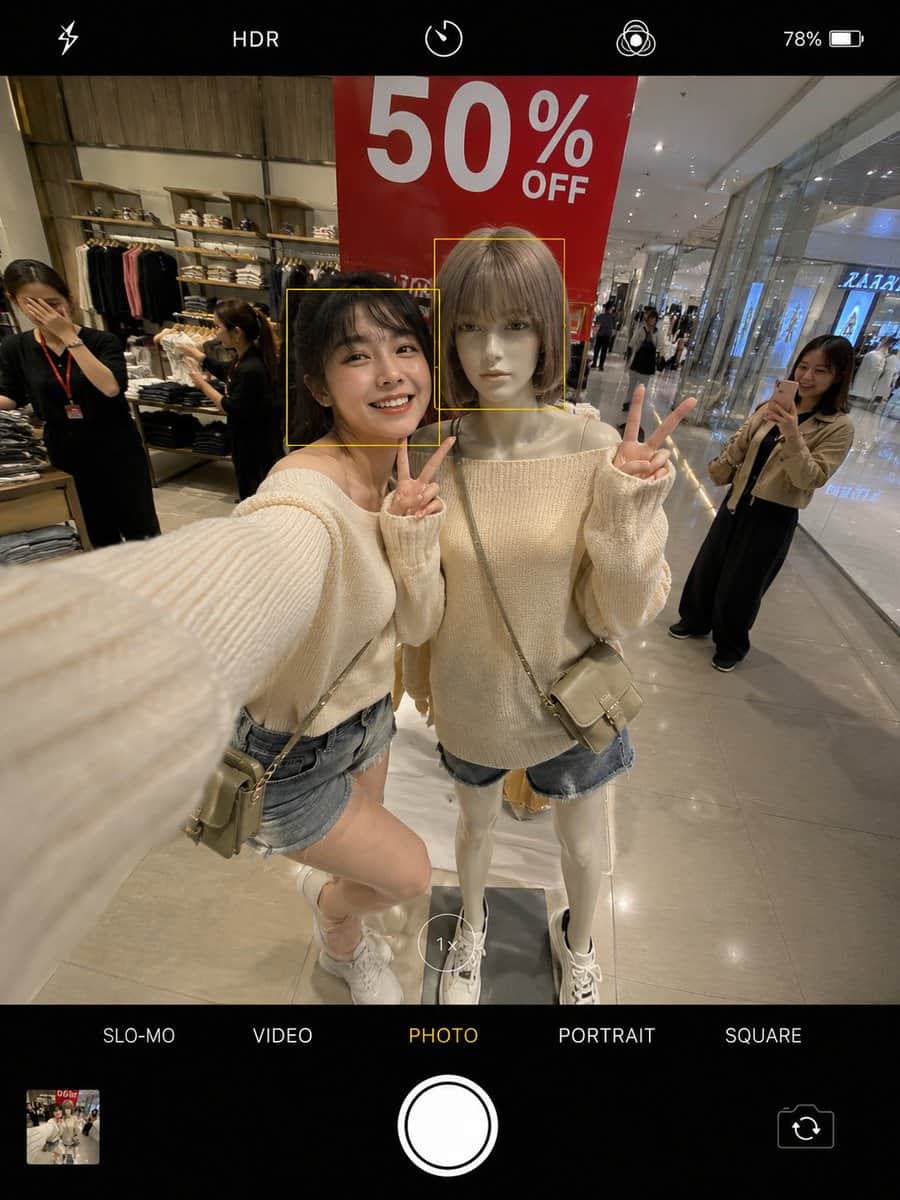
Give Magi-2 the portrait you want to keep. Ask for softer street light or a busier background while keeping the expression and jacket. The small choices are what make it feel like a candid shot.
Keep the relaxed framing and spontaneous expression. Use soft daylight, an everyday street setting and natural detail without a polished studio backdrop.
Set the Magi-2 edit beside the original portrait. Compare the face, hands and background; change one detail on the next pass so you can tell what helped.
For a Magi-2 character clip, a doorway and a folded shirt can be enough. Keep both hands in frame as the fabric opens. The viewer gets a complete little story even with the sound off.
A woman outside a familiar doorway lifts and unfolds a white garment. Keep the camera steady and the hands visible.
Follow the fabric and hand contact. Check that the person and the surroundings remain consistent.
Let the dancer set the pace of the Magi-2 clip. A steady view gives the turn space to finish. Try following the dancer only after you know which beat you want the camera to catch.
A woman dancing in a warmly lit tunnel. Keep her full movement readable, the outfit consistent and the camera motion smooth.
Check the face, hands and feet throughout the action. Watch the ending before choosing your cut.
A still already gives your Magi-2 video its subject and composition. Choose what moves first. A fingertip closing around a handle can tell us more than moving the whole camera.
Open your still at full size in Magi-2. Check the crop and leave room on the side your subject will move toward.
Open the completed image task and choose “Turn into a video” when available, or upload a saved image in the Magi-2 video editor. Check the model, framing and duration before adding motion.
What changes between the first and last frame of this Magi-2 take? Let the hand close on the handle and lift the bag. If the grip slips, simplify the movement or revisit the starting picture.
A red umbrella folds just as the shop door swings open. Try that beat in Magi-2, watch when the movements meet, then try a second take with a beat between them.

Describe the subject, setting, light, and composition. A product on a quiet studio backdrop needs a different brief from a wide coastal scene. Use a reference when shape or visual identity matters.
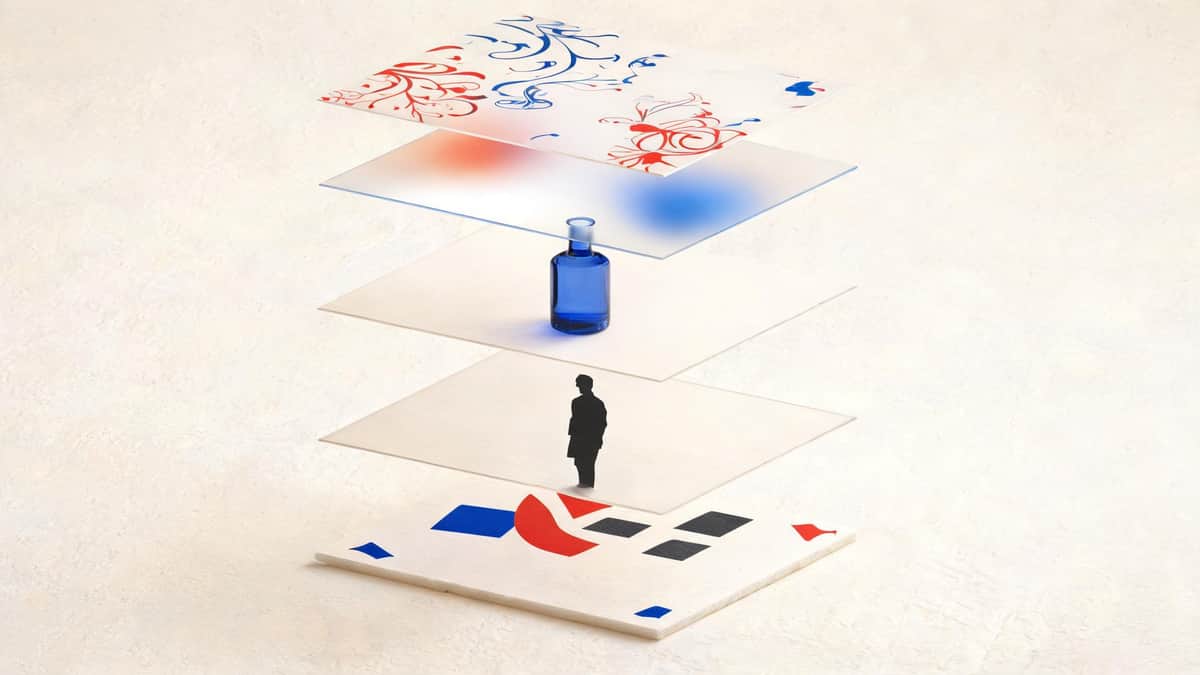
If the blue jacket is already right, keep that picture as a reference while you change the light. For a scene that hasn’t been shot yet, sketch who enters first. Choose a model and framing to suit that shot.
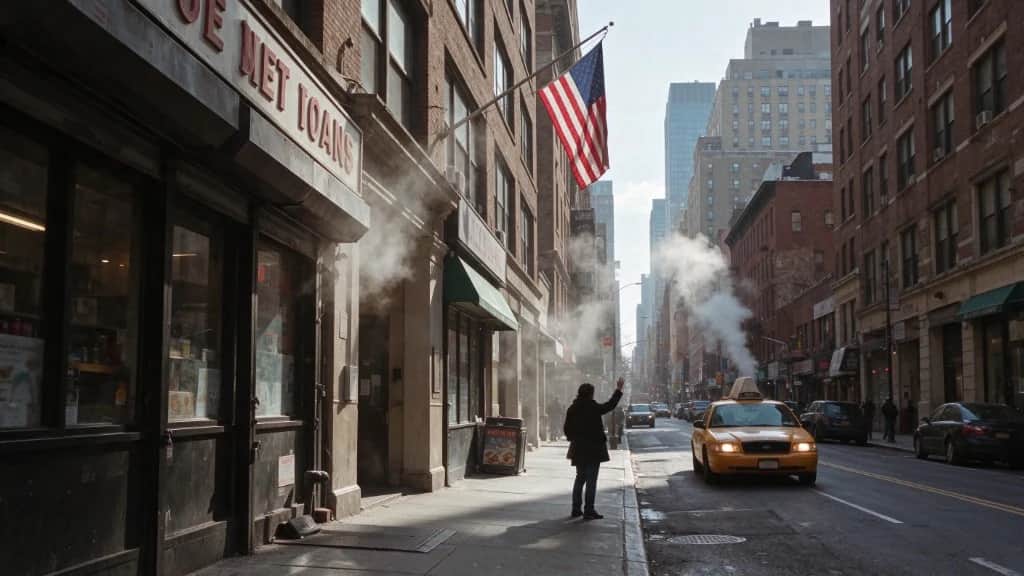
Review the composition at full size. For video, describe a single camera movement and a clear subject action. A deliberate starting frame makes a short sequence easier to direct.
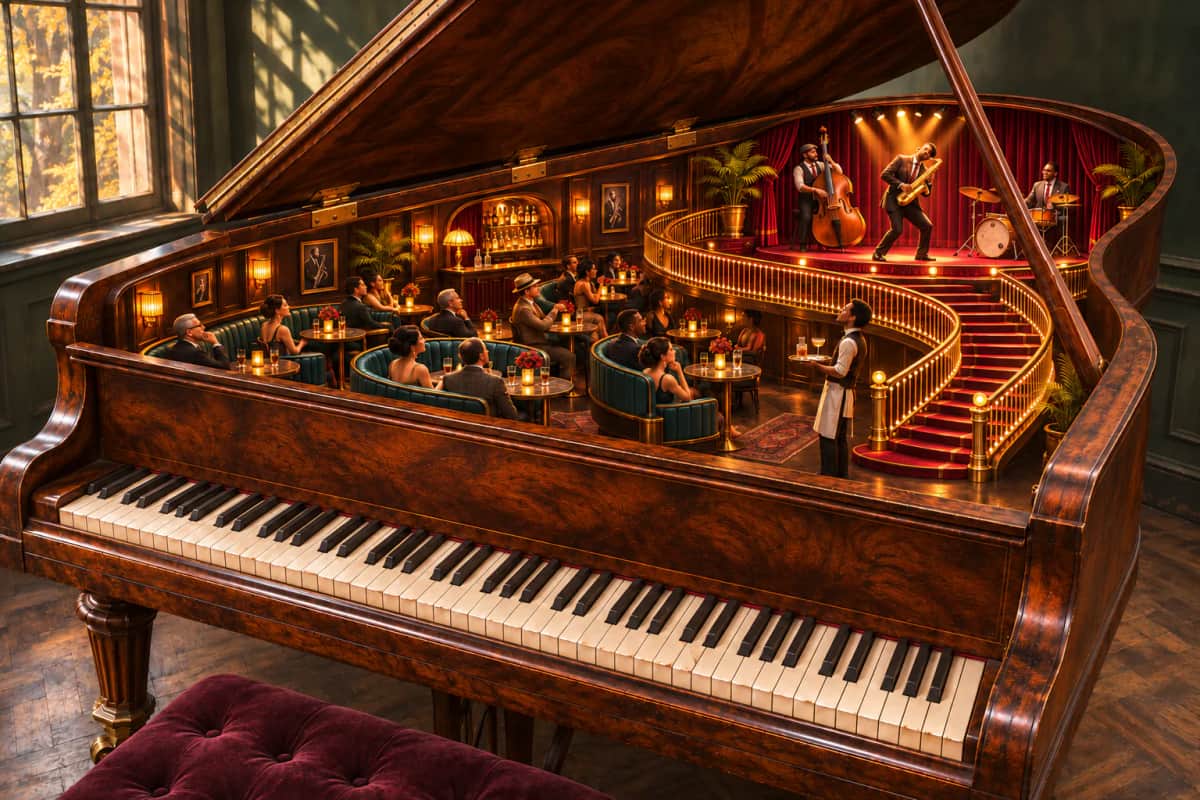
Find completed work in your Magi-2 history. Download the result or reuse its settings to refine the brief without rebuilding your setup. Your account keeps the working context together.
For a Magi-2 scene, write what we see at the start and at the end. If a shop window starts dark and ends full of morning light, someone raising the shutter can carry the whole story.
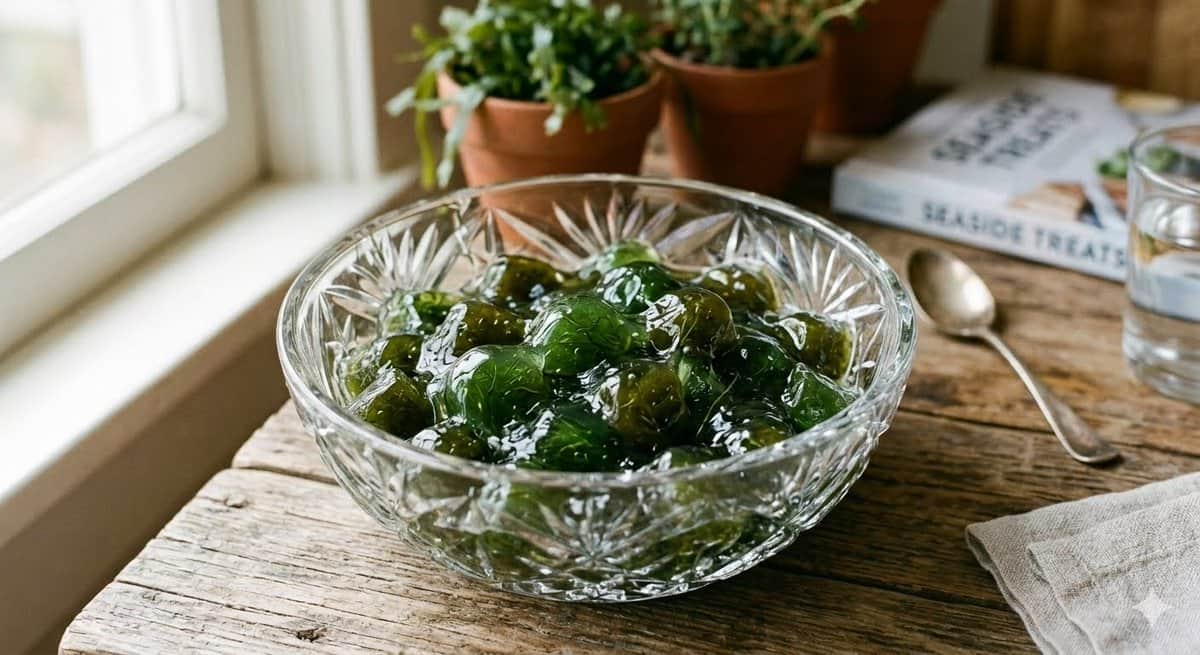
Tell Magi-2 what makes your subject recognizable. A coat with a single red button says more than calling it distinctive.
Tell Magi-2 which reference fixes the shape and which one sets the color. A bottle photo can do the first job and a painted wall the second.
Give the dancer one turn or the cyclist one corner. A single movement gives your Magi-2 shot time to breathe before the next cut.
Separate the two movements in the Magi-2 brief. The walker crosses the square. The camera stays by the fountain. Now each has a clear direction.
| What you notice | What to revise in Magi-2 | What to check next |
|---|---|---|
| A reference detail has drifted | Use a clear reference and describe the exact detail to retain. | Compare shape, color and proportions with the source. |
| The framing does not fit the layout | In Magi-2, choose the shape of the finished poster and leave space where the headline will go. | Check the full frame before adding typography. |
| Too much happens at once | Keep one main action and simplify the camera direction. | Watch the Magi-2 clip once. Can you follow the subject all the way through? |
| The ending feels cut short | Shorten the action or choose a longer available duration. | Does the final frame give you a usable place to cut? |
What have you already settled on? A bottle with a distinctive silhouette is worth keeping in frame. A character you haven’t cast yet gives you room to experiment. Compare the four starting points in Magi-2 below.
| Magi-2 workflow | Start with | Best for |
|---|---|---|
| Text to image | A written visual brief | Exploring a new composition or visual direction |
| Image editing | A brief and image references | Reworking a setting, palette, or arrangement |
| Text to video | A scene and motion description | Creating a short sequence from a new idea |
| Image to video | A still and motion direction | Adding movement to a prepared composition |
A clip for a phone might need a taller frame. Once you’ve found models that suit the shot, compare their credit estimates before deciding which one to try.

Pick an image or video model for the idea you have in mind. You can see what it needs right beside your description, so it’s easy to prepare your images and settings.
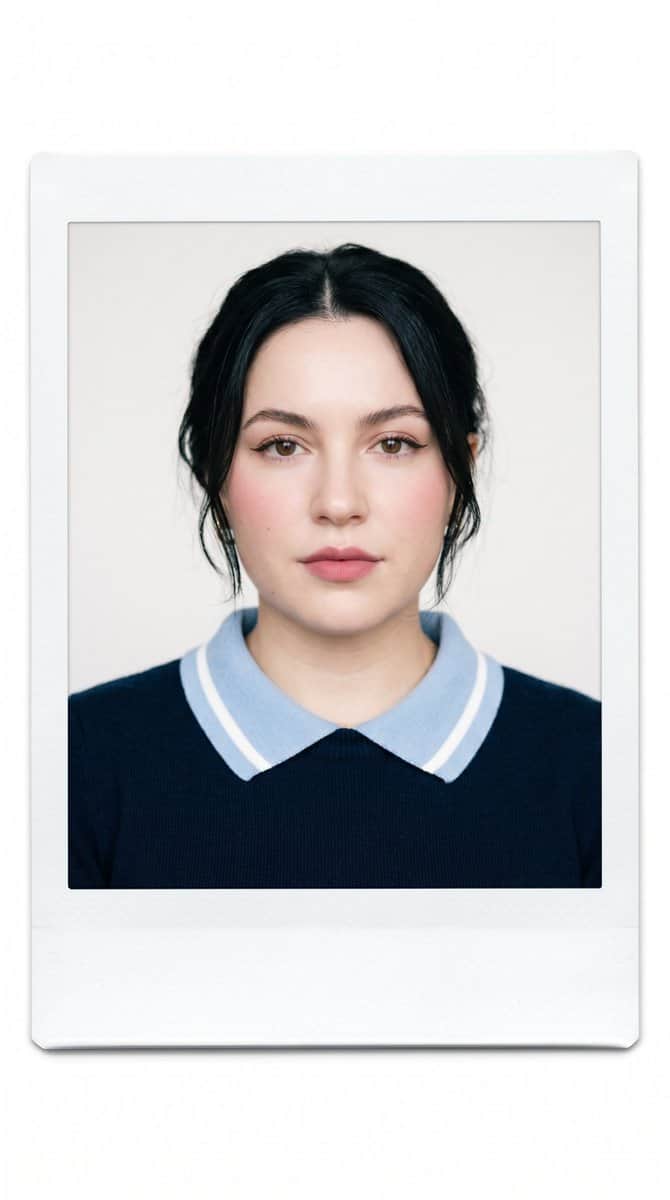
Use an image to communicate material, composition, or a starting frame. Your uploads belong to your account and remain separate from public examples.
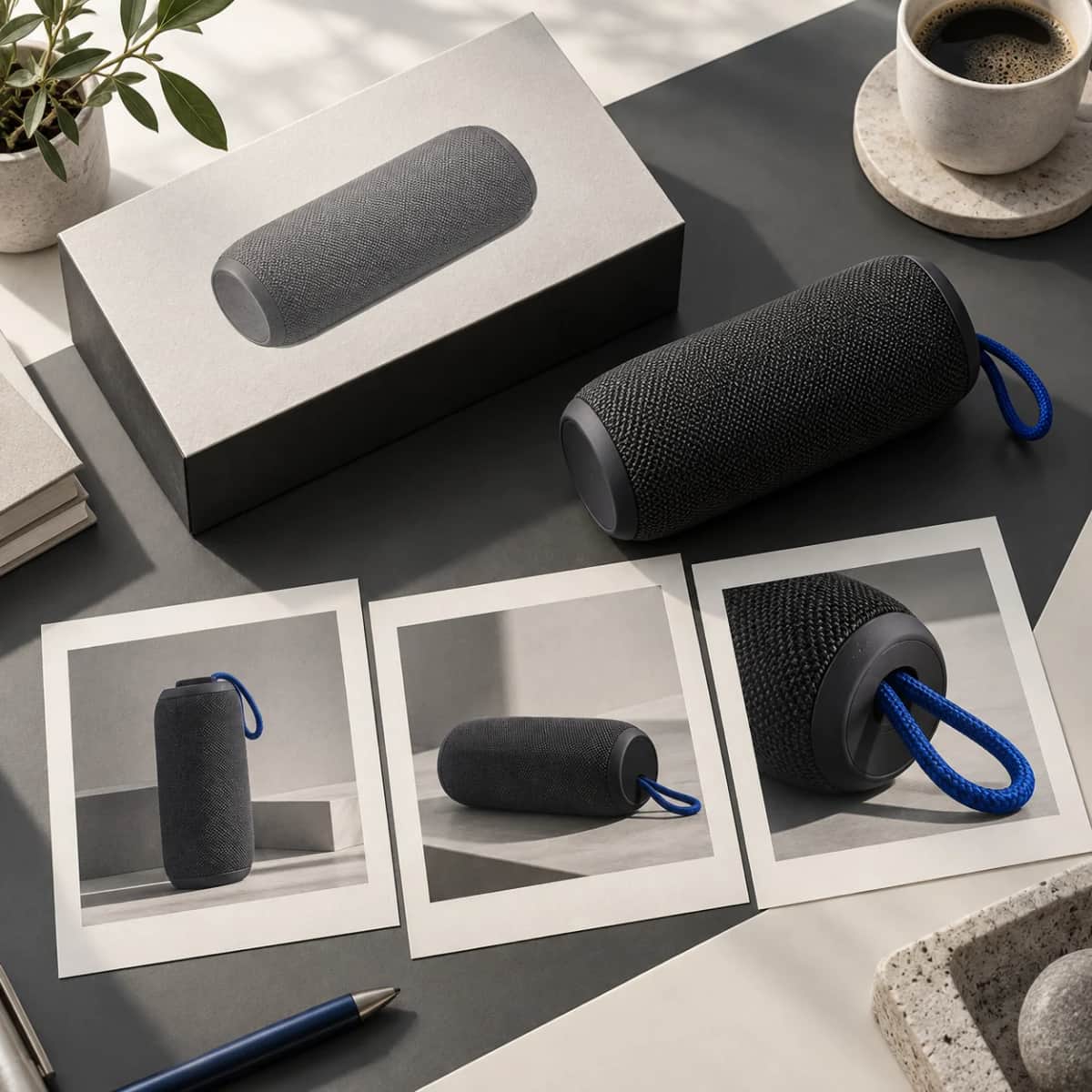
The Magi-2 workspace calculates a quote from your model and settings before submission. Available and reserved credits stay separate while work is running.
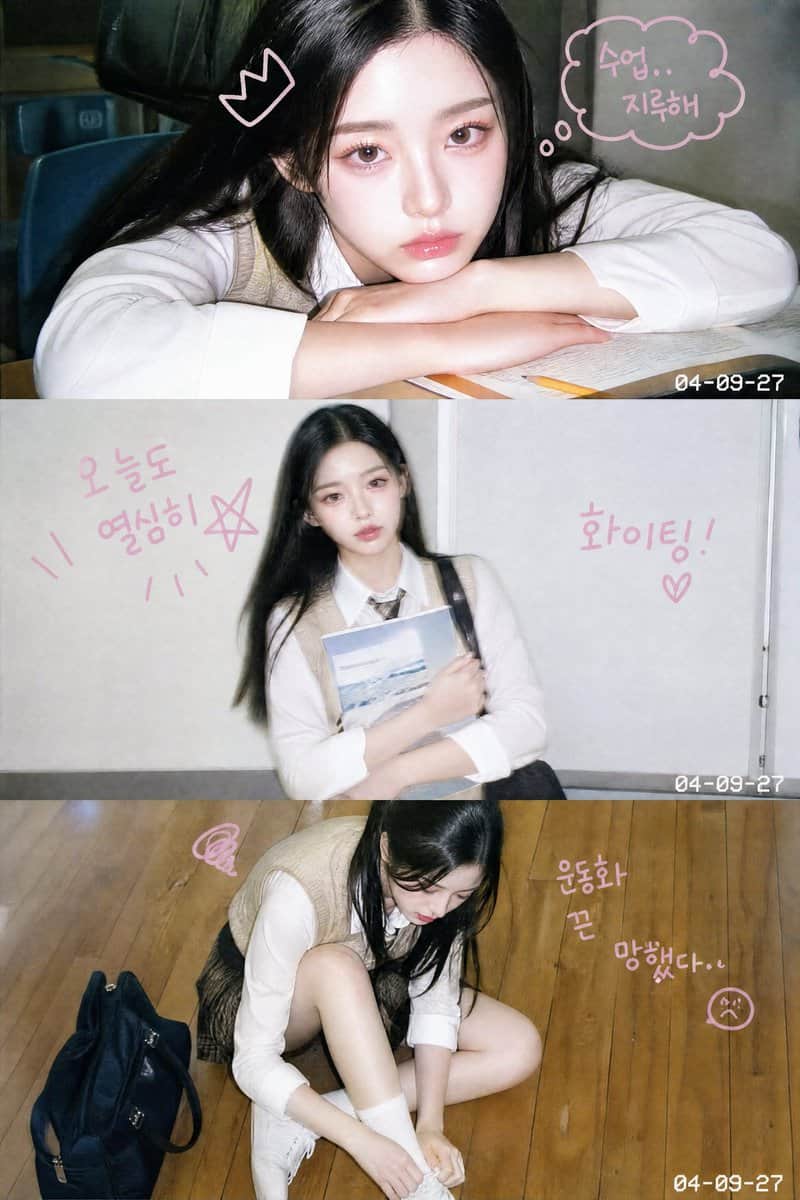
History brings the result, prompt, model, and status together. Reuse a completed Magi-2 task to make the next iteration easier to compare.
Save the frame that settled the look, the line that sounded right and the take with the best pause. The next edit can start there.
A shop window, a café menu and a portrait all ask for different framing. Keep the version from Magi-2 that reads clearly in the place you’ll show it.
Watch the same take twice. Once for the actor’s glance, once for the moment the camera follows. If they happen together, try leaving a beat between them.
Review your Magi-2 history, revisit earlier settings, and see your available credits before starting the next task.
If the colour of the coat or the shape of the room is still up in the air, try a picture first. If the story is the coat slipping from someone’s shoulder, try a clip. Have a frame you love already? Keep it as the opening image and direct just that gesture.
Pick something the product does that a photo leaves out. Open a bag to reveal what fits inside, turn a lamp toward a book or pour tea into a clear cup. Give the viewer a moment to see the result.
You could give a café a summer menu, put a bottle on a sunlit shelf or shoot the moment a traveller sees the sea. Magi-2 has image and video workspaces. Open the one that fits the piece you want to make to see its available models.
Yes. Choose your workflow and model, then use the upload controls shown there. Image editing can use references; video modes may offer an opening image, first and last frames or other materials. The Magi-2 uploader shows supported formats, counts and file sizes before you submit.
Start with the output you need, then choose a model that supports your inputs. Set the aspect ratio for the destination and adjust quality or video duration. The quote updates to reflect those choices; changing a model does not silently submit a task.
When your request is accepted, Magi-2 holds the estimated credits for that creation. If it completes successfully, those credits are used. A confirmed failure or cancellation releases them. If we’re still checking what happened, the credits stay on hold until we know the outcome.
Sign in and open your Magi-2 history. Each task brings its prompt, settings, status and completed files together. Open the details to download the original, copy the prompt or reuse the settings. Completed images also offer video continuation when a compatible option is available.
Treat the Magi-2 gallery like a sketchbook. Borrow a framing choice or a rhythm you like. Your reference, prompt and model will shape how your own version looks.
Think of a moment you wish you’d filmed. Maybe someone glanced back from a train just before the doors closed. Give that moment an opening shot in Magi-2.